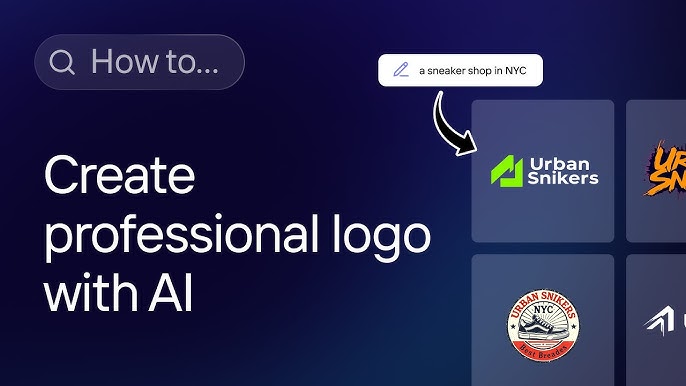
There is a persistent myth that logo design requires expensive designers and weeks of back-and-forth. For established businesses with complex brand needs, that may still be true. But for startups, freelancers, small nonprofits, and solo businesses launching on a budget, AI-powered text-to-vector tools have made it genuinely possible to produce a usable logo in an afternoon without knowing anything about design software.
This guide walks through how to use AI to turn your business name into a professional vector logo, from your initial prompt to a finished SVG file ready for print and web.
Why Vector Matters for Logo Work
Before getting into the process, a quick note on format. When someone says they need a logo, they often mean any image file will do. But for professional use, you need a vector file, specifically an SVG or EPS, not a JPEG or PNG. Here is why: a raster logo at 300×300 pixels looks fine on a business card but becomes blurry on a website header or unwearable on a banner. A vector logo is mathematically described, so it scales to any size from a favicon to a billboard with no quality loss.
Using an AI SVG generator that outputs native vector files means you get a logo that is immediately usable for all professional applications, not just digital preview.
Step 1: Define Your Brand Before You Prompt
The single most important factor in getting good AI logo results is the quality of your input. AI tools generate what you describe, so vague descriptions produce generic results.
Before opening any tool, answer these questions:
- What is the business name? This seems obvious, but think about whether you want just the name, an acronym, or the name paired with a tagline.
- What industry or category does the business serve? A tech startup, a bakery, a law firm, and a children’s camp all have different visual languages. The AI needs this context.
- What mood or personality should the logo convey? Professional and authoritative? Playful and approachable? Minimalist and modern? Warm and artisanal? Pick two or three words that capture the feeling you want.
- What colors do you prefer? Even a rough preference helps. “Deep blues and clean white” produces different results than “warm earth tones.”
- Are there any styles you like or want to avoid? Looking at other logos in your industry and noting what you like and dislike informs better prompts.
Step 2: Write an Effective Prompt
With your brand definition in hand, write a prompt that gives the AI everything it needs. A strong logo prompt includes:
- The business name or initials to feature
- The industry context
- The visual style (modern, vintage, minimalist, geometric, hand-drawn, etc.)
- The color palette
- Any specific elements (an icon, a monogram, text-only, etc.)
- What to avoid
Example of a weak prompt: “Make a logo for my bakery called Sweet Things.”
Example of a strong prompt: “Create a minimalist vector logo for a bakery named Sweet Things. Use a warm terracotta and cream color palette. The logo should feature clean sans-serif typography with a small, simple wheat stalk icon. Modern but approachable. No drop shadows or gradient effects.”
The stronger prompt will produce considerably more targeted results because it constrains the design space toward what you actually want.
Step 3: Generate Multiple Variations
AI logo tools typically generate several variations from a single prompt. Do not settle for the first result. Generate multiple rounds, adjusting your prompt based on what the initial output reveals about what is working and what is not.
If the first set of results has the right style but the wrong colors, refine the color specification. If the layout is good but the typography is not quite right, add more specific typography direction. If the icon element is the problem, try describing it differently or asking for a text-only logo without an icon.
Plan to spend at least 15-20 minutes iterating before committing to a direction. This iterative process is the creative workflow, not a sign that the tool is failing.
Step 4: Evaluate the Results Honestly
When reviewing AI-generated logos, ask yourself these practical questions rather than just “do I like it?”:
- Will this read clearly at small sizes? A logo with fine details or light-on-light color combinations will disappear at icon size. Squint at it or view it at 16×16 pixels to simulate small-size rendering.
- Is it distinct from competitors? Run a quick mental comparison against the logos of your top three competitors. A logo that looks generically similar to everything else in your industry is not doing its job.
- Does it work in black and white? Professional logos need to work without color — for fax documents, embossing, newspaper ads, and various production contexts. Look at the logo in grayscale.
- Does it reflect the brand personality you described? This is the gut check. Does it feel like your business?
Step 5: Download the SVG and Customize
Once you have a direction you are happy with, download the SVG file and open it in an editor for any final customizations. Common post-generation tweaks include:
- Typography adjustments. The AI may have chosen a typeface that is close to what you want but not exactly right. In the SVG editor, you can replace the text element with your preferred font.
- Color refinement. Brand colors often need to be exact hex values. Edit the fill attributes to match your precise brand color codes.
- Proportion adjustments. The spacing between the icon and the text, or the relative size of different elements, may need minor tweaks to achieve visual balance.
- Creating variants. Most professional logos need at least three versions: horizontal (icon and name side by side), stacked (icon above name), and standalone icon. Once you have the base SVG, create these variants by rearranging the elements.
Step 6: Save the Production Files
From your final SVG, save or export:
- SVG (the master vector file for any future editing)
- PNG at multiple resolutions (for web and digital use)
- PDF (for print-ready files)
Store these in an organized folder and document the color codes and fonts used, so you can maintain visual consistency as your brand grows.
Conclusion
Making a professional vector logo with AI is not about pressing a button and accepting whatever comes out. It is a directed creative process where you bring brand clarity and the AI brings design execution capability. The more clearly you can articulate what you want, the better the results. SVGMaker combines AI generation with direct SVG editing and export in one workflow, which means you can generate, refine, and customize your logo without switching between multiple tools.